
Guide contents
Small tools for your own workspace
Keep useful times, notes, and tasks close by. Choose a tool from Add widget, then open its details from Settings while editing widgets.
Open workspace01
World Clock
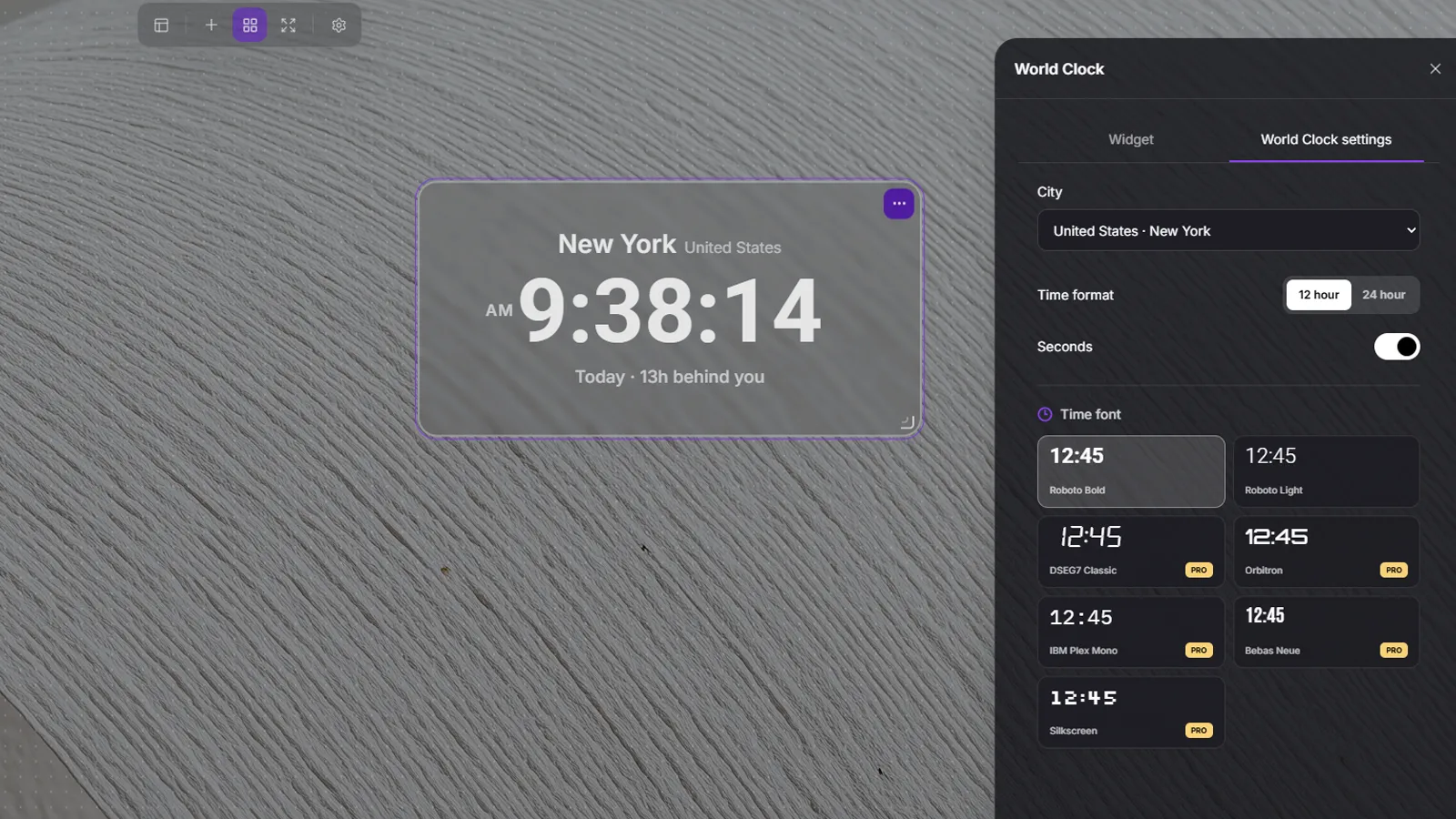
See the current time in another city alongside its time difference from your location.
- Find and select a city in World Clock details.
- Choose 12- or 24-hour format, seconds visibility, and a font.
- Check the city and local time on the widget. Yesterday, today, or tomorrow indicates the date relative to yours.
02
Text
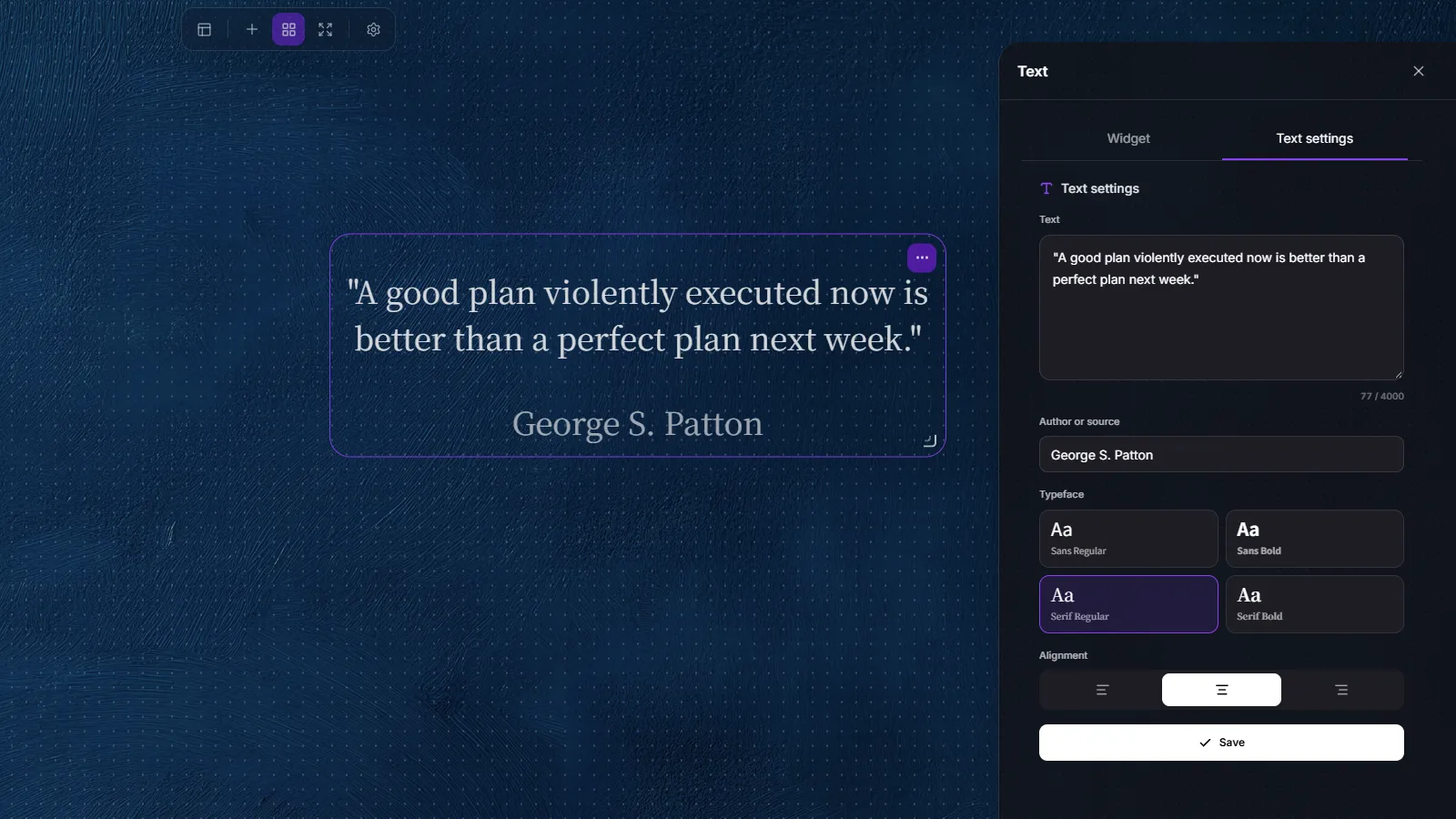
Keep a short note or a favorite quote on your desktop.
- Enter your text in Text details and optionally add its source below.
- Choose a font and left, center, or right alignment, then save.
- Text size adapts to the widget. Leave enough space for longer passages.
03
Date & Day
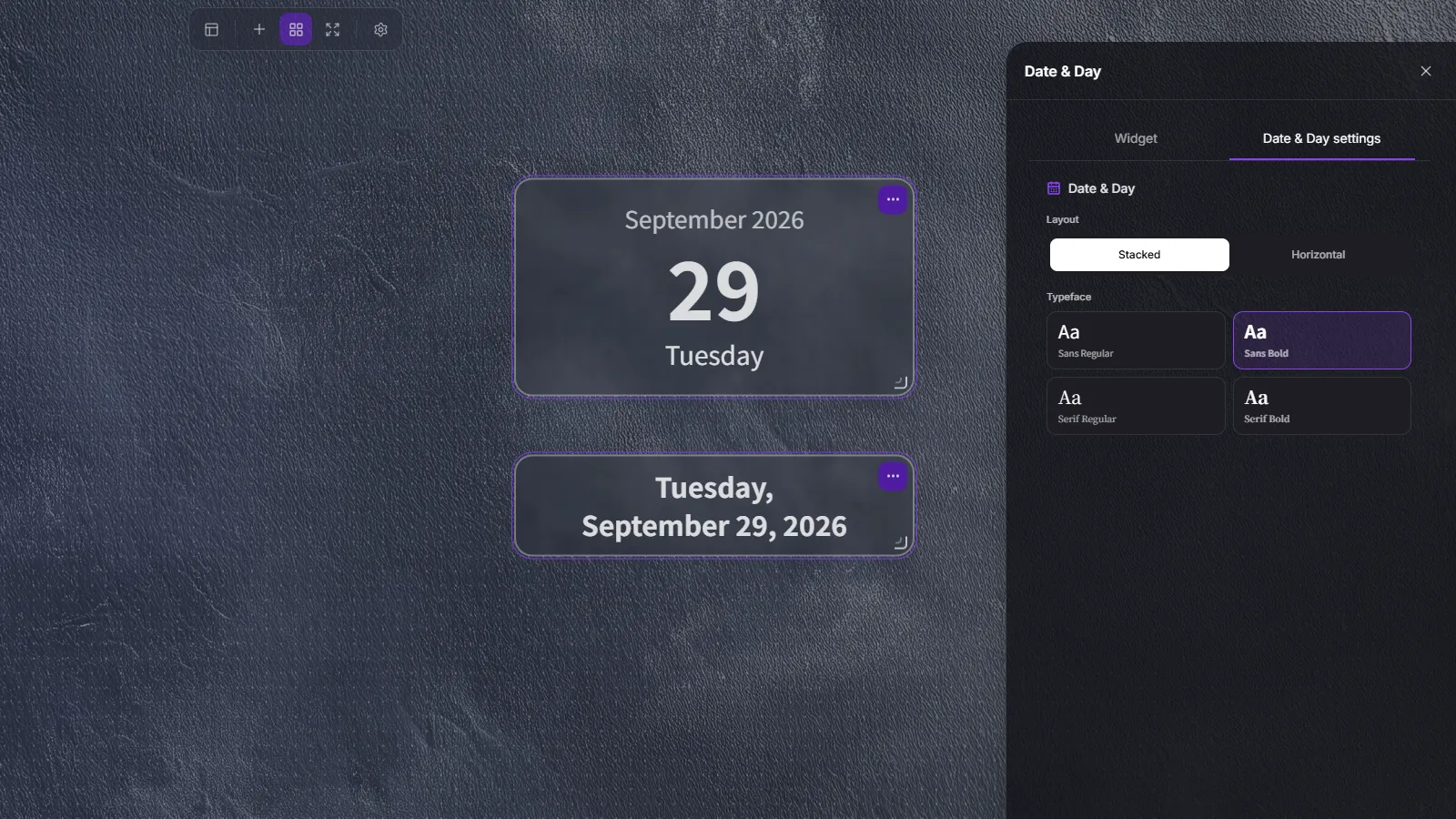
Check today's date and weekday at a glance, based on your device's local date.
- Add the Date & Day widget.
- Choose a horizontal or vertical layout and a font in its details.
- Place it next to a clock or calendar and resize with the bottom-right handle.
04
Calendar
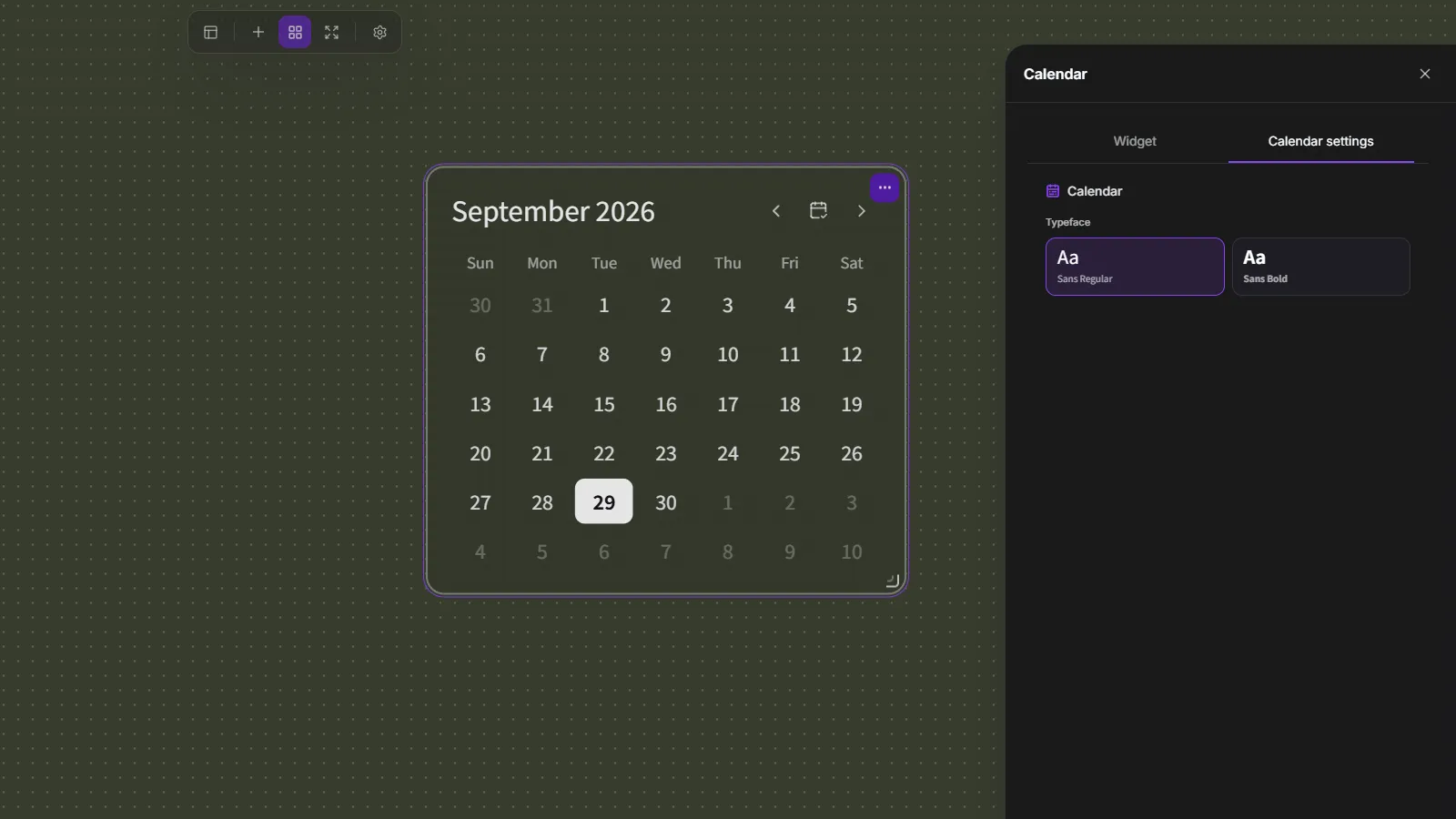
View the dates and weekdays of a month. Today's date is highlighted.
- Use the left and right arrows to move between months.
- Press the central Today button to return to the current month.
- Choose a font in Calendar details.
05
To Do
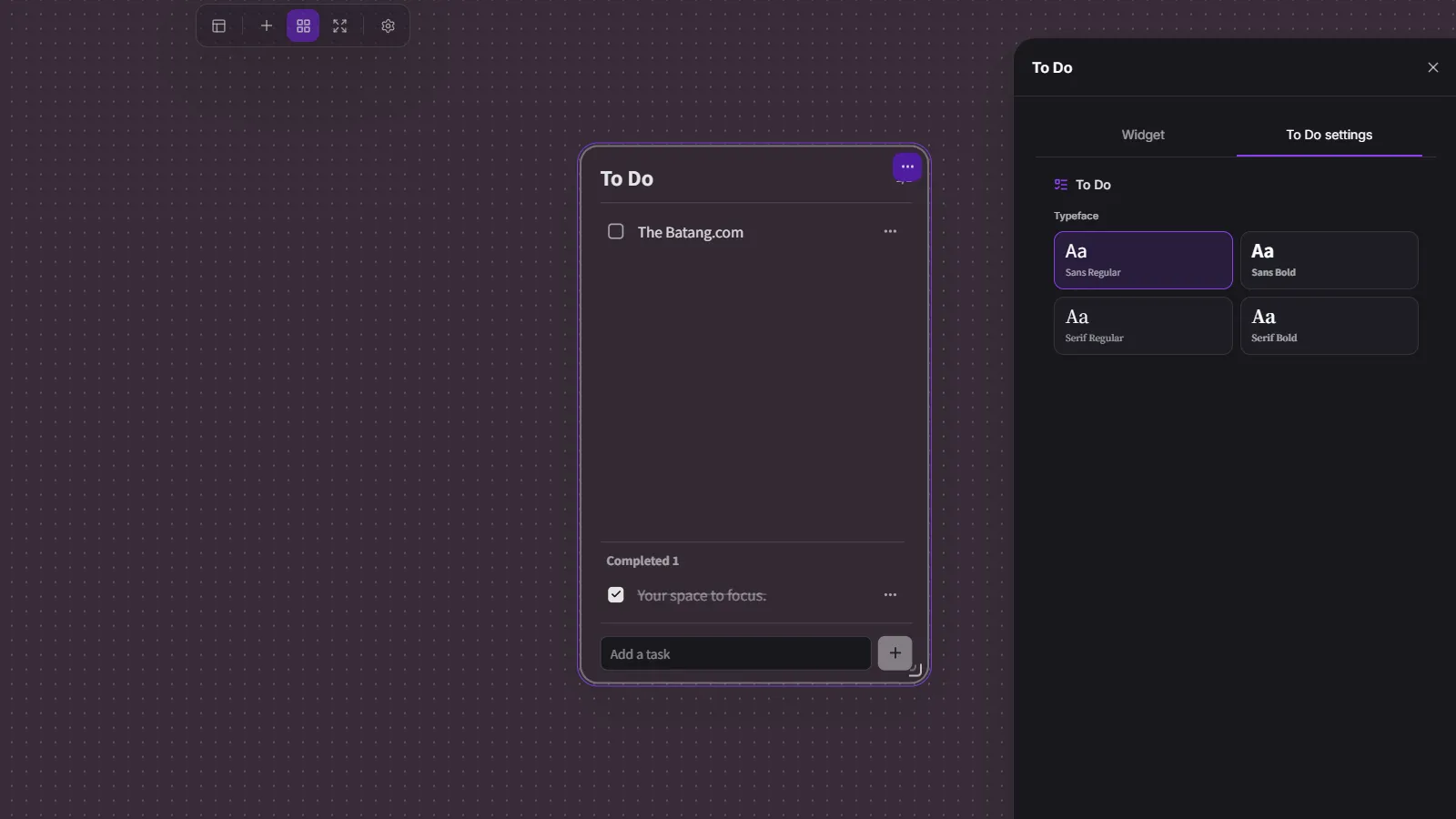
Write down what needs doing and check off finished tasks.
- Enter a task in the field at the bottom and press add.
- Check a task to mark it complete. Uncheck it to return it to your active tasks.
- Use a task's more menu to edit or delete it.
- Completed tasks can be cleared together. Review the confirmation before deleting.
06
YouTube
Keep a video or playlist on your desktop with this free widget.
- Choose YouTube at the bottom of Add widget.
- Enter a video or playlist link, review and agree to the privacy information, then press Apply. Choose a playback mode for links containing both a video and playlist.
- Press play to start. Apply repeat playback in details or open The Batang official channel.
- In edit mode, drag the frame space outside the video to move the widget and use the bottom-right handle to resize.